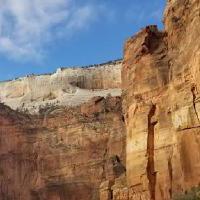
Crop
- Syntax
- RESOURCE.Crop SPECIFICATION
- Returns
- images.ImageResource
Use this method with global resources, page resources, or remote resources.
The Crop method returns a new resource from a processable image according to the given processing specification.
Use the reflect.IsImageResourceProcessable function to verify that an image can be processed.
Usage
When cropping, you must provide both width and height (such as 200x200) within the specification. This method does not perform any resizing; it simply extracts a region of the image based on the dimensions and the anchor provided, if any.
{{ with resources.Get "images/original.jpg" }}
  {{ with .Crop "200x200 TopRight" }}
    <img src="{{ .RelPermalink }}" width="{{ .Width }}" height="{{ .Height }}" alt="">
  {{ end }}
{{ end }}
In the example above, "200x200 TopRight" is the processing specification.
Processing specification
The processing specification is a space-delimited, case-insensitive list containing one or more of the following options in any sequence:
- action
- Specify one of
crop,fill,fit, orresize. This is applicable to theProcessmethod and theimages.Processfilter. If you specify an action, you must also providedimensions. - anchor
- The focal point used when cropping or filling an image. Valid options include
TopLeft,Top,TopRight,Left,Center,Right,BottomLeft,Bottom,BottomRight, orSmart. TheSmartoption utilizes themuesli/smartcroppackage to identify the most interesting area of the image. This defaults to theanchorsetting in your imaging configuration. - background color
- The background color used when converting transparent images to formats that do not support transparency, such as PNG to JPEG. This color also fills the empty space created when rotating an image by a non-orthogonal angle if the space is not transparent and a background color is not specified in the processing specification. The value must be an RGB hexadecimal color. This defaults to the
bgColorsetting in your imaging configuration. - compression
- New in v0.153.5
- The encoding strategy, applicable to AVIF and WebP images. Options are
lossyorlossless. This defaults to the format-specificcompressionsetting in your imaging configuration. - dimensions
- The dimensions of the resulting image, in pixels. The format is
WIDTHxHEIGHTwhereWIDTHandHEIGHTare whole numbers. When resizing an image, you may specify only the width (such as600x) or only the height (such asx400) for proportional scaling. Specifying both width and height when resizing an image may result in non-proportional scaling. When cropping, fitting, or filling, you must provide both width and height such as600x400. - format
- The format of the resulting image. Valid options include
avif,bmp,gif,jpeg,png,tiff, orwebp. This defaults to the format of the source image. - hint
- The content hint, applicable to AVIF and WebP images. Valid options include
drawing,icon,photo,picture, ortext. This defaults to the format-specifichintsetting in your imaging configuration.Value Example drawingHand or line drawing with high-contrast details iconSmall colorful image photoOutdoor photograph with natural lighting pictureIndoor photograph such as a portrait textImage that is primarily text - quality
- The visual fidelity, applicable to JPEG images and to AVIF and WebP images when using
lossycompression. The format isqQUALITYwhereQUALITYis a whole number between1and100, inclusive. Lower numbers prioritize smaller file size, while higher numbers prioritize visual clarity. This defaults to the format-specificqualitysetting in your imaging configuration. - resampling filter
- The algorithm used to calculate new pixels when resizing, fitting, or filling an image. Common options include
box,lanczos,catmullRom,mitchellNetravali,linear, ornearestNeighbor. This defaults to theresampleFiltersetting in your imaging configuration.Filter Description boxSimple and fast averaging filter appropriate for downscaling lanczosHigh-quality resampling filter for photographic images yielding sharp results catmullRomSharp cubic filter that is faster than the Lanczos filter while providing similar results mitchellNetravaliCubic filter that produces smoother results with less ringing artifacts than CatmullRom linearBilinear resampling filter, produces smooth output, faster than cubic filters nearestNeighborFastest resampling filter, no antialiasing Refer to the source documentation for a complete list of available resampling filters. If you wish to improve image quality at the expense of performance, you may wish to experiment with the alternative filters.
- rotation
- The number of whole degrees to rotate an image counter-clockwise. The format is
rDEGREESwhereDEGREESis a whole number. Hugo performs rotation before any other transformations, so your target dimensions and any anchor should refer to the image orientation after rotation. User90,r180, orr270for orthogonal rotations, or arbitrary angles such asr45. To rotate clockwise, use a negative number such asr-45. To automatically rotate an image based on its Exif orientation tag, use theimages.AutoOrientfilter instead of manual rotation.Rotating by non-orthogonal values increases the image extents to fit the rotated corners. For formats supporting alpha channels such as AVIF, PNG, or WebP, this resulting empty space is transparent by default. If the target format does not support transparency such as JPEG, or if you explicitly specify a background color in the processing specification, the space is filled. If a color is required but not specified in the processing string, it defaults to the
bgColorsetting in your imaging configuration.
Example
{{ with resources.Get "images/original.jpg" }}
  {{ with .Crop "200x200 TopRight" }}
    <img src="{{ .RelPermalink }}" width="{{ .Width }}" height="{{ .Height }}" alt="">
  {{ end }}
{{ end }}
Original
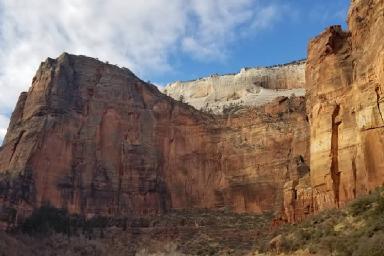
Processed