
Deploy to Render
Deploy your project to Render.
Use these instructions to enable continuous deployment from a GitHub repository. The same general steps apply for other Git providers such as GitLab or Bitbucket.
Do not commit the contents of the public directory to your repository. Hugo recreates this directory when you build your project.
Prerequisites
Please complete the following tasks before continuing:
- Create a Render account.
- Log in to your Render account.
- Create a GitHub account.
- Log in to your GitHub account.
- Create a GitHub repository for your project.
- Create a local Git repository for your project with a remote reference to your GitHub repository.
- Create a Hugo project within your local Git repository and test it with the
hugo servercommand. - Commit the changes to your local Git repository and push to your GitHub repository.
Procedure
- Step 1
- Create a
render.yamlfile in the root of your project, adjusting the tool versions and time zone as needed.render.yamlservices: - type: web name: hosting-render repo: https://github.com/jmooring/hosting-render runtime: static buildCommand: chmod a+x build.sh && ./build.sh staticPublishPath: public envVars: - key: DART_SASS_VERSION value: 1.105.1 - key: GO_VERSION value: 1.27.2 - key: HUGO_VERSION value: 0.168.0 - key: NODE_VERSION value: 24.21.0 - key: TZ value: Europe/Oslo - Step 2
- Create a
build.shfile in the root of your project.build.sh#!/usr/bin/env bash #------------------------------------------------------------------------------ # @file # Builds a Hugo project hosted on Render. # # Render automatically installs Node.js and any Node.js dependencies. #------------------------------------------------------------------------------ # Exit on error, undefined variables, or pipe failures set -euo pipefail # Set the build cache directory HUGO_CACHEDIR="${PWD}/.cache/hugo" # Perform cleanup cleanup() { if [[ -n "${build_temp_dir:-}" && -d "${build_temp_dir}" ]]; then rm -rf "${build_temp_dir}" fi } # Register the cleanup trap trap cleanup EXIT SIGINT SIGTERM main() { # Export the build cache directory export HUGO_CACHEDIR # Create a temporary directory for downloads build_temp_dir=$(mktemp -d) # Create a local tools directory mkdir -p "${HOME}/.local" # Install Dart Sass echo "Installing Dart Sass ${DART_SASS_VERSION}..." curl -sfL --output-dir "${build_temp_dir}" -O "https://github.com/sass/dart-sass/releases/download/${DART_SASS_VERSION}/dart-sass-${DART_SASS_VERSION}-linux-x64.tar.gz" tar -C "${HOME}/.local" -xf "${build_temp_dir}/dart-sass-${DART_SASS_VERSION}-linux-x64.tar.gz" export PATH="${HOME}/.local/dart-sass:${PATH}" # Install Go if [[ -f "go.mod" ]]; then echo "Installing Go ${GO_VERSION}..." curl -sfL --output-dir "${build_temp_dir}" -O "https://go.dev/dl/go${GO_VERSION}.linux-amd64.tar.gz" tar -C "${HOME}/.local" -xf "${build_temp_dir}/go${GO_VERSION}.linux-amd64.tar.gz" export PATH="${HOME}/.local/go/bin:${PATH}" fi # Install Hugo echo "Installing Hugo ${HUGO_VERSION}..." curl -sfL --output-dir "${build_temp_dir}" -O "https://github.com/gohugoio/hugo/releases/download/v${HUGO_VERSION}/hugo_${HUGO_VERSION}_linux-amd64.tar.gz" mkdir -p "${HOME}/.local/hugo" tar -C "${HOME}/.local/hugo" -xf "${build_temp_dir}/hugo_${HUGO_VERSION}_linux-amd64.tar.gz" export PATH="${HOME}/.local/hugo:${PATH}" # Log tool versions echo "Logging tool versions..." command -v sass &> /dev/null && echo "Dart Sass: $(sass --version)" || echo "Dart Sass: not installed" command -v go &> /dev/null && echo "Go: $(go version)" || echo "Go: not installed" command -v hugo &> /dev/null && echo "Hugo: $(hugo version)" || echo "Hugo: not installed" command -v node &> /dev/null && echo "Node.js: $(node --version)" || echo "Node.js: not installed" # Configure Git echo "Configuring Git..." git config --global core.quotepath false # Fetch full Git history if [[ $(git rev-parse --is-shallow-repository) == true ]]; then echo "Fetching full Git history..." git fetch --unshallow fi # Initialize Git submodules if [[ -f .gitmodules ]]; then echo "Initializing Git submodules..." git submodule update --init --recursive fi # Build the project echo "Building the project..." hugo build --gc --minify } main "$@" - Step 3
- In the project configuration file in the root of your local Git repository, set the location of the image cache to the
cacheDiras shown below.caches: images: dir: :cacheDir/images[caches] [caches.images] dir = ':cacheDir/images'{ "caches": { "images": { "dir": ":cacheDir/images" } } }See configure file caches for more information.
- Step 4
- Commit the changes to your local Git repository and push to your GitHub repository.
- Step 5
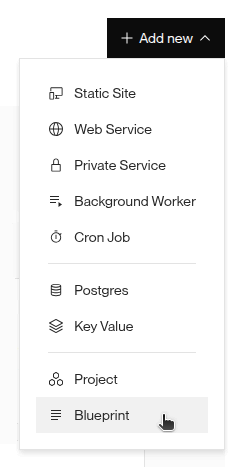
- On the Render dashboard, press the Add new button and select “Blueprint” from the drop-down menu.
- Step 6
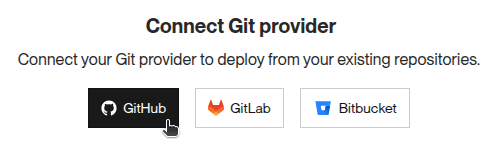
- Press the GitHub button to connect to your GitHub account.
- Step 7
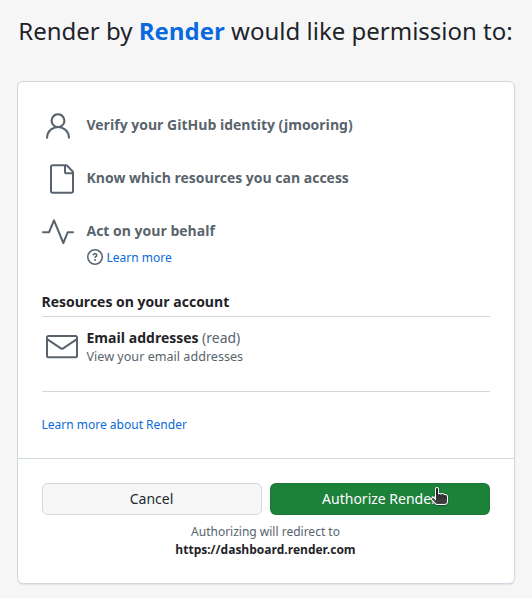
- Press the Authorize Render button to allow the Render application to access your GitHub account.
- Step 8
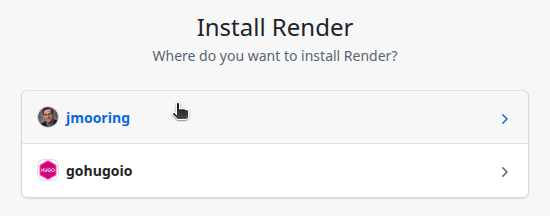
- Select the GitHub account where you want to install the Render application.
- Step 9
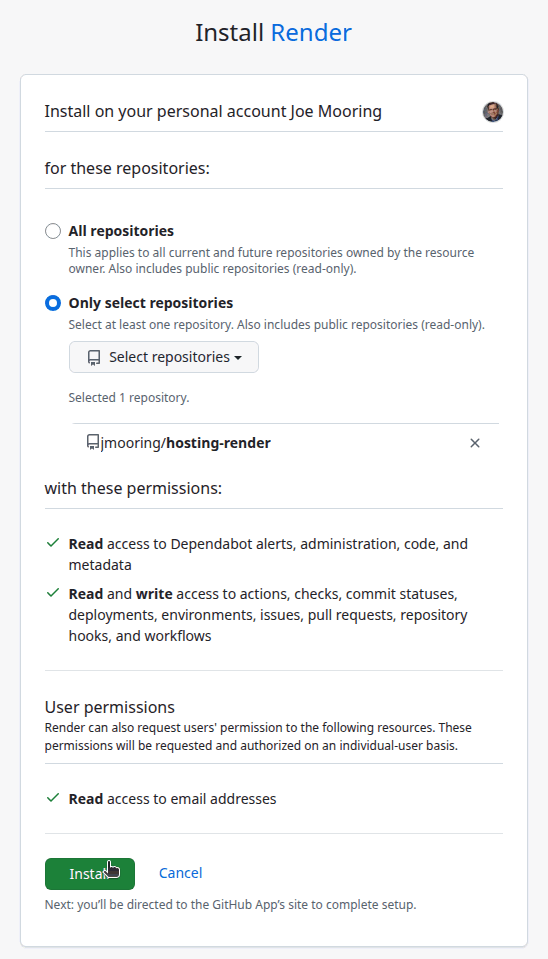
- Authorize the Render application to access all repositories or only select repositories, then press the Install button.
- Step 10
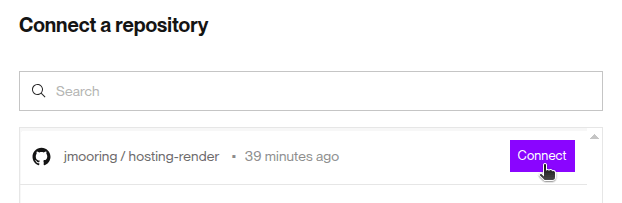
- On the “Create a new Blueprint Instance in My Workspace” page, press the Connect button to the right of the name of your GitHub repository.
- Step 11
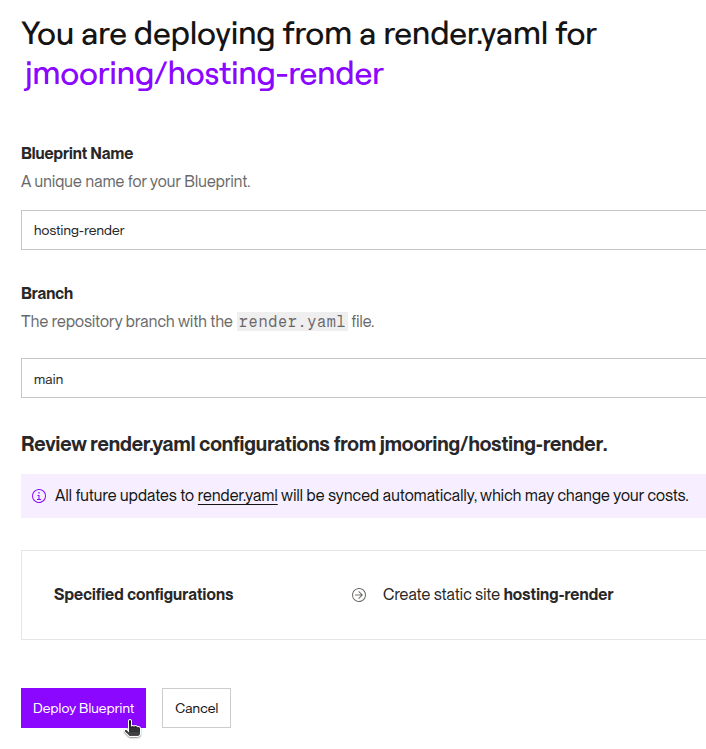
- Enter a unique name for your Blueprint, then press the Deploy Blueprint button at the bottom of the page.
- Step 12
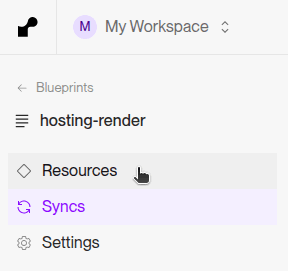
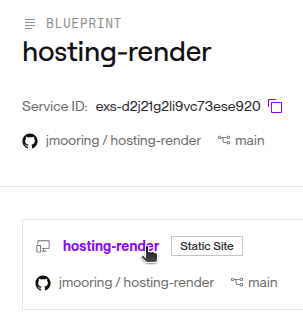
- Wait for the site to build and deploy, then click on the “Resources” link on the left side of the page.
- Step 13
- Click on the link to the static site resource.
- Step 14
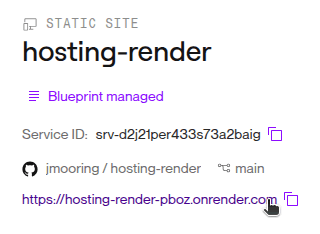
- Click on the link to your published site.
In the future, whenever you push a change from your local Git repository, Render will rebuild and deploy your site.
Related resources
For more information on hosting and managing your site with Render, consult the official documentation: